
Windows Defender Settings
Follow the step-by-step visual guide below to exclude the game folder from Windows Defender and prevent client crashes or file blocks.
🛡️ How to Add Game Folder to Windows Defender Exclusions
1
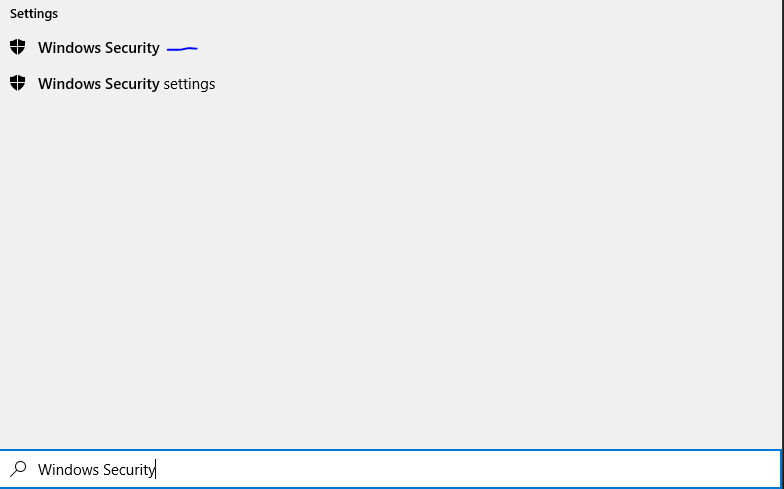
Open the Start Menu and type Windows Security, then press Enter.
2
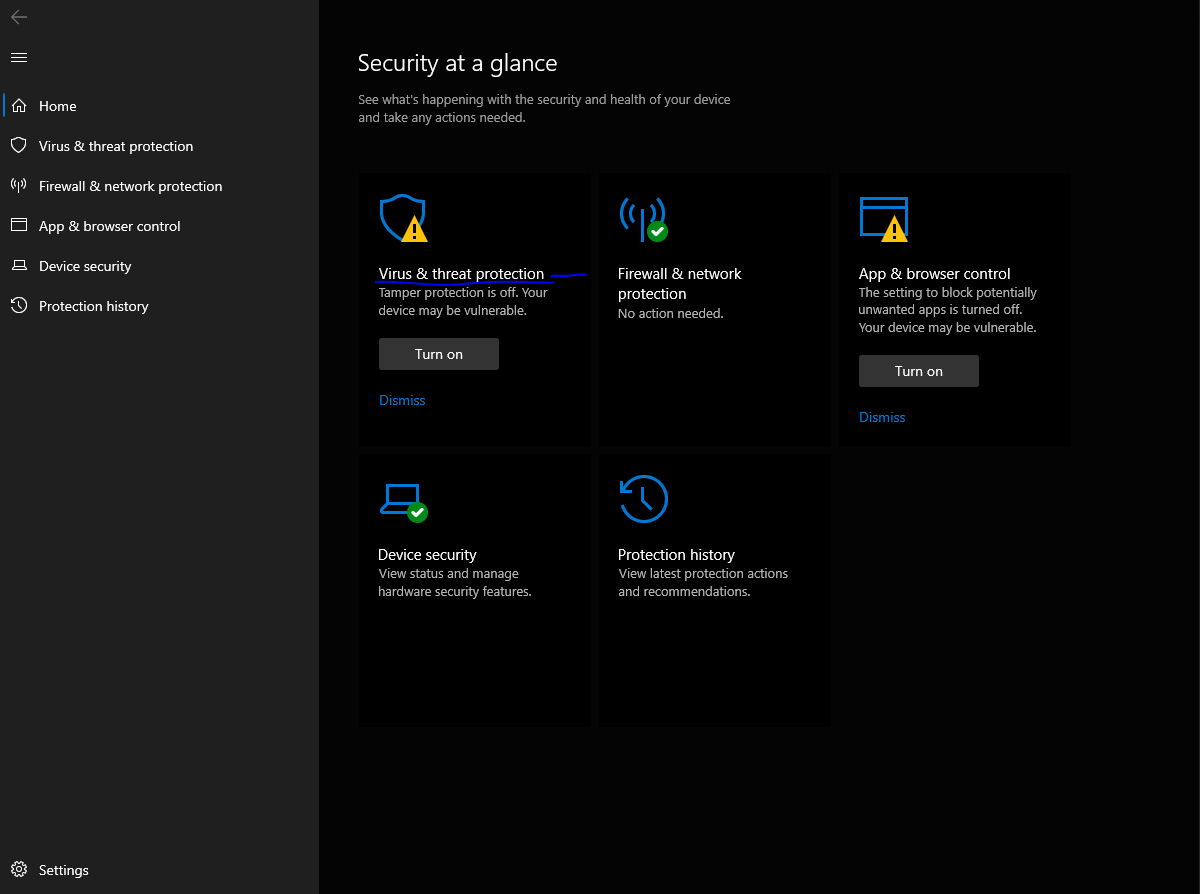
Click on Virus & threat protection.
3
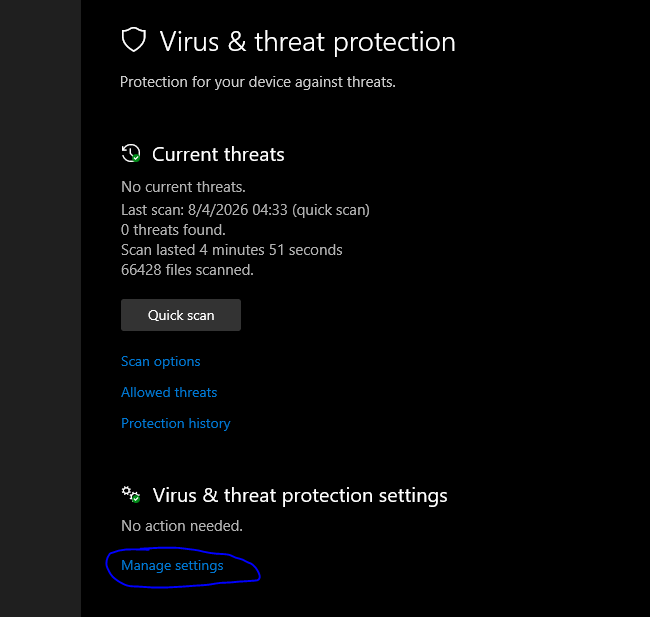
Under Virus & threat protection settings, click on Manage settings.
4
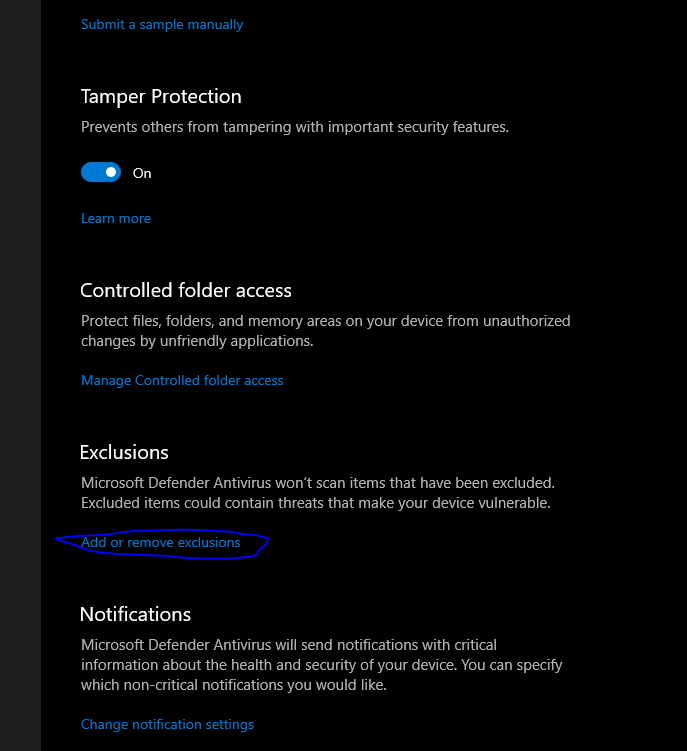
Scroll down to Exclusions and click on Add or remove exclusions.
5
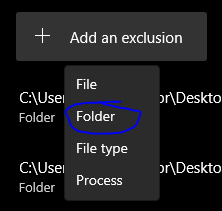
Click Add an exclusion, select Folder, and choose your JibekRoad Online game folder.
⚠️ IMPORTANT NOTE FOR WINDOWS 11 USERS:
Windows 11 users must additionally disable Smart App Control if the game client or launcher update is being blocked automatically by the system.
Windows 11 users must additionally disable Smart App Control if the game client or launcher update is being blocked automatically by the system.
💻 Windows 11: How to Disable Smart App Control
1
Open the Start Menu and type Windows Security, then press Enter.
2
Click on App & browser control.
3
Click on Smart App Control settings.
4
Set Smart App Control to Off.